RCS (Rich Communication Services) is the modern messaging standard on Android that enhances regular texting with features like read receipts, typing indicators, and high-quality photo and video sharing. While these features improve daily communication, there are situations where disabling RCS becomes necessary—such as troubleshooting network issues, saving mobile data, or most importantly, switching from Android to an iPhone.
If RCS is not turned off before changing devices, incoming messages from Android users may not arrive on your new phone and can get stuck in Google’s RCS system instead of being delivered as standard SMS. This guide explains how to safely disable RCS, both with and without access to your Android phone.
Method 1: Turn Off RCS Using Your Android Phone
This is the recommended method if you still have your Android device.
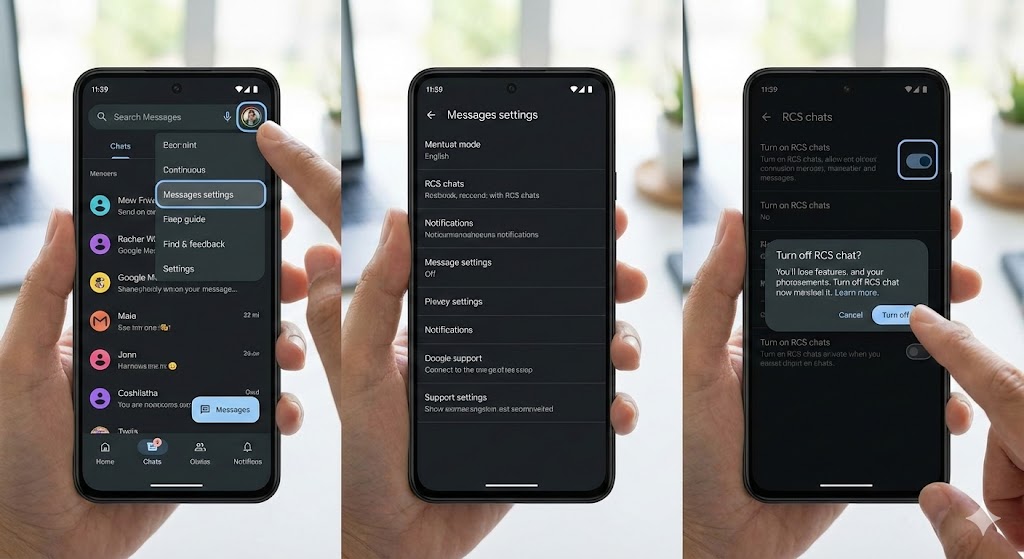
1. Open the Google Messages app.
2. Tap your Profile Picture or the three-dot menu in the top-right corner.
3. Select Messages settings.
4. Tap RCS chats or Chat features.
5. Toggle Turn on RCS chats to the OFF position.
6. Confirm by tapping Turn off if prompted.
Note: On Samsung phones using the Samsung Messages app, go to Messages → Settings → Chat settings and turn off Rich Communications.
Method 2: Turn Off RCS Without Your Phone
Use this method if your Android phone is lost, damaged, sold, or you have already switched to an iPhone.
1. Visit Google’s official Disable Chat page.
2. Scroll to the section labeled Without your previous device.
3. Select your Country and enter your Phone Number.
4. Click Send Code.
5. Enter the 6-digit verification code received via SMS.
6. Verify to permanently deregister your number from RCS.
Frequently Asked Questions (FAQs)
Will I lose my existing text messages if I turn off RCS?
No. Turning off RCS does not delete your existing messages. It only affects future messages, which will be sent as standard SMS/MMS instead of RCS chats.
Why is my RCS status stuck on “Verifying” or “Setting up”?
This is a common issue. Try the following steps:
• Go to Settings → Apps → Messages → Storage → Clear Data
• Go to Settings → Apps → Carrier Services → Storage → Clear Data
• Leave RCS turned off for up to 24 hours before trying again
Do I need to turn off RCS before switching to an iPhone?
Yes, absolutely. If RCS remains active, Android users may continue sending you RCS messages that your iPhone cannot receive, causing messages to be lost entirely.
What happens to my group chats after disabling RCS?
If a group chat uses RCS-only features, you may be removed or unable to reply. Ask the group admin to create a standard MMS group so you can continue participating.
Does turning off RCS save battery or mobile data?
Yes. RCS relies on a constant internet connection. Switching back to SMS reduces background data usage and can slightly improve battery life, though carrier SMS charges may apply.
Conclusion
Disabling RCS is a simple but crucial step, especially when changing phones or moving from Android to iPhone. While you lose advanced features like read receipts and high-quality media sharing, you gain the reliability of traditional SMS and ensure that no important messages are missed. Whether you are troubleshooting issues or preparing for a device switch, following the steps above will help you turn off RCS safely and permanently.